Everything in Messages is one of five things, and the kind decides what you're allowed to do with it.
The first three are channels. Nobody makes them by hand — the app keeps their membership in step with your team, your league season or your division, so people arrive and leave as the roster changes. The last two are yours: someone chose who was in them.
Who's in it
Can you leave?
Team channel
Everyone on the team
Mute only
League channel
Everyone in the league season
Mute only
Division channel
Everyone in the division
Mute only
Group
The people its creator picked
Yes
Direct message
Two people
Yes
Starting a conversation
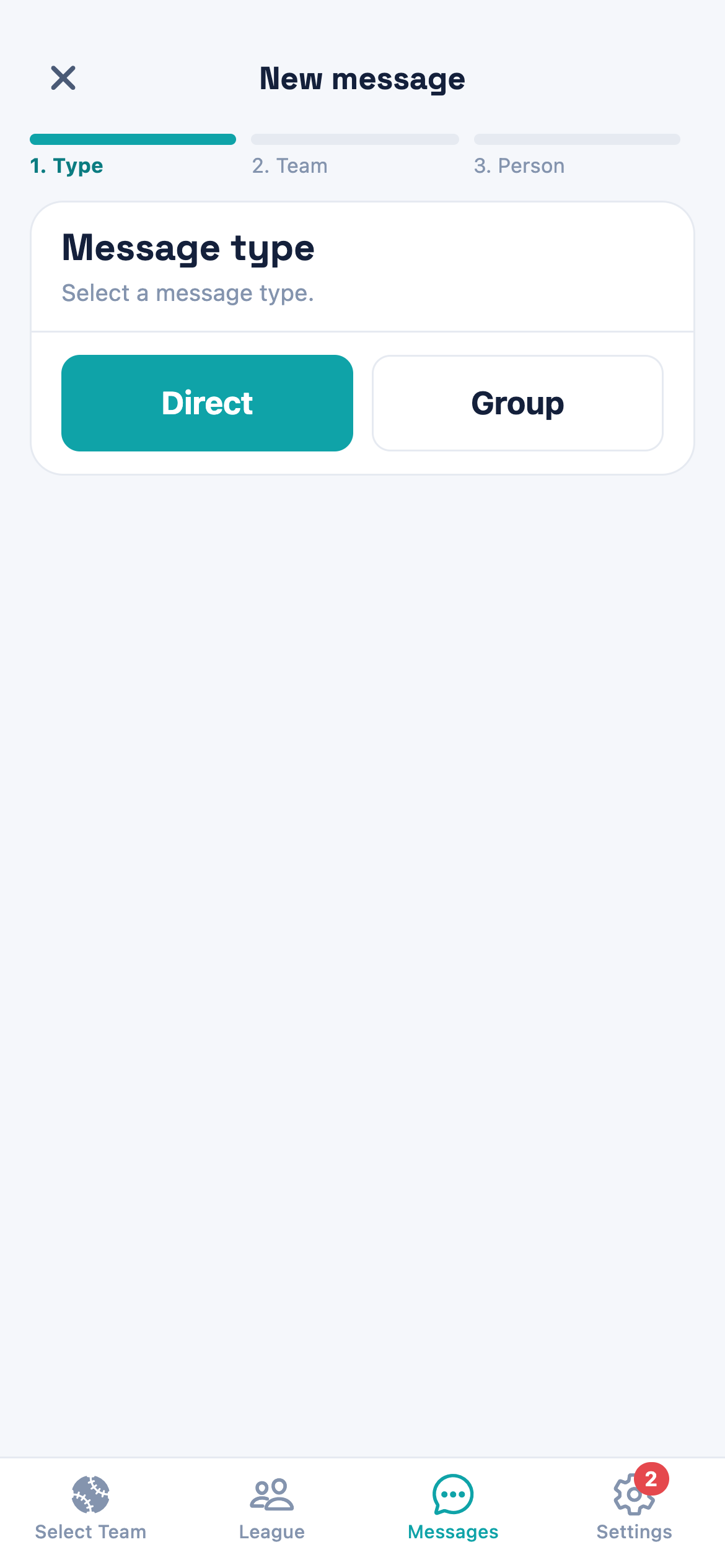
You can only ever start the last two kinds. Tap the + at the top of Messages and the New message screen walks you through it: pick Direct or Group, choose the team, then choose the people.
A group can have a name, but it doesn't need one — leave it blank and it shows as Group message. Only people on the team you picked can be added to it.
Direct is one other person; Group is several. The steps above change with your choice — Group asks for Members where Direct asks for a Person.
Adding people to a group later
Only the person who created a group can add to it, and only to a group — a channel's membership is managed for you, so there's nothing to add.
When you add someone the app asks one question worth thinking about: Full history or Only new messages. Full history opens everything said before they arrived. Only new messages starts them from today, and the earlier conversation stays private to the people who were there.
Reactions
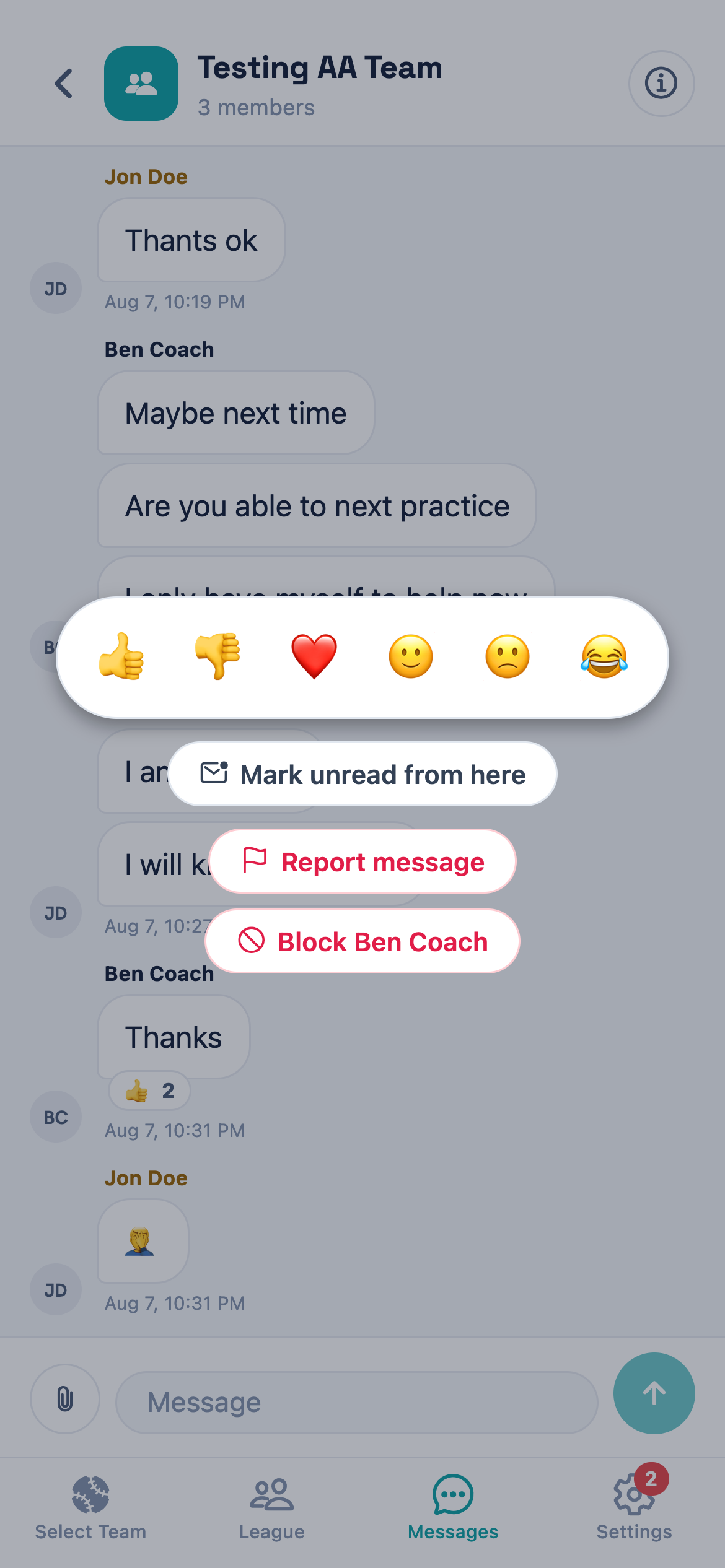
Press and hold a message. Six reactions appear — thumbs up, thumbs down, heart, smile, frown and laugh — and tapping one adds it. Tap the same one again to take it back. It's the quickest way to answer a coach who needs to know you've read something without adding another message to the pile.
The same menu is where you'll find Report message and Block, and a Mark unread from here for when you want to come back to something later.
Report and Block only appear on other people's messages — you won't see them on your own.
Seeing who reacted
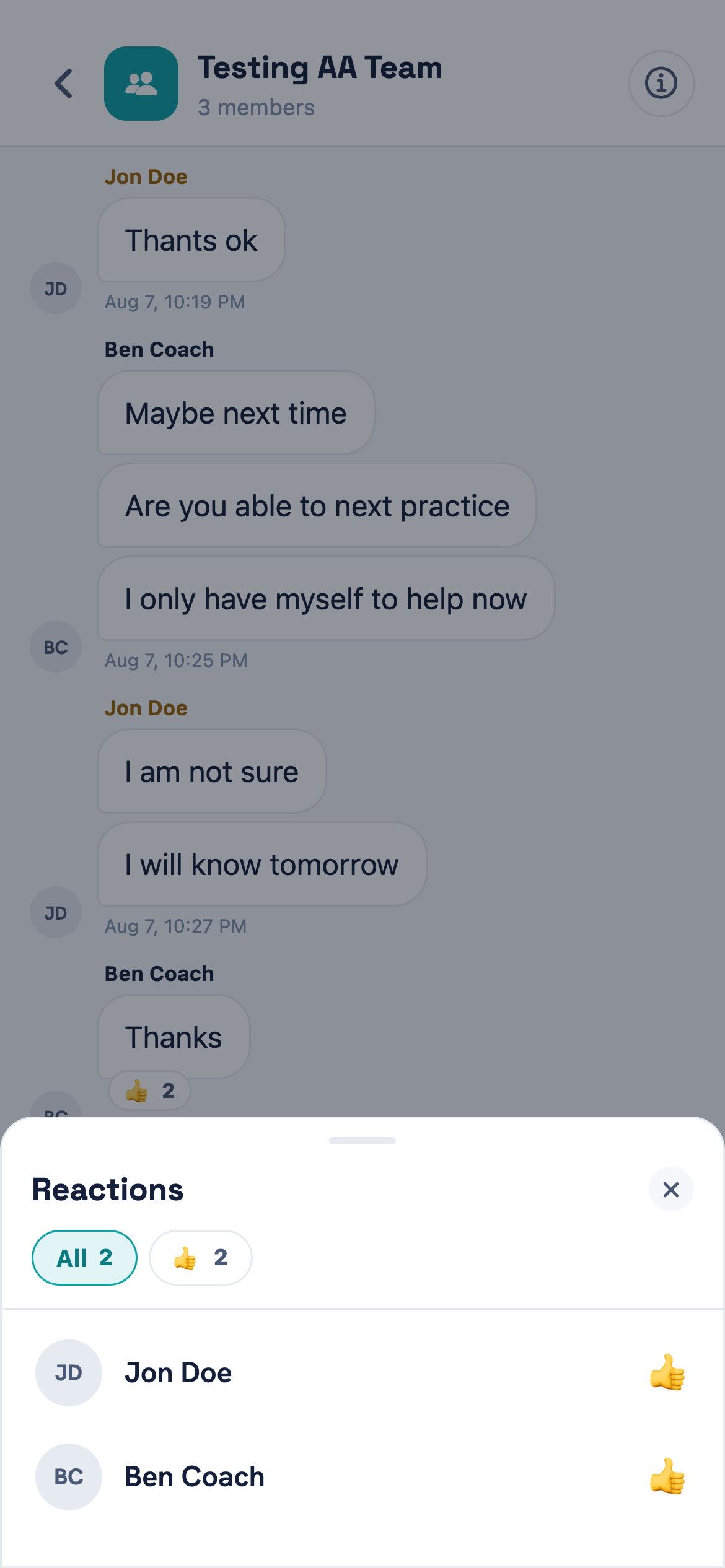
A message that's been reacted to carries a small chip underneath with the emoji and a count. Tap the chip to open Reactions, which lists every person by name. The tabs across the top split them up when a message has collected more than one kind — All first, then one tab per emoji.
The count on the chip is people, not reactions — one person can only give a message one of each.
Muting, leaving and deleting
Three different things that readers reach for interchangeably, and only one of them is available everywhere.
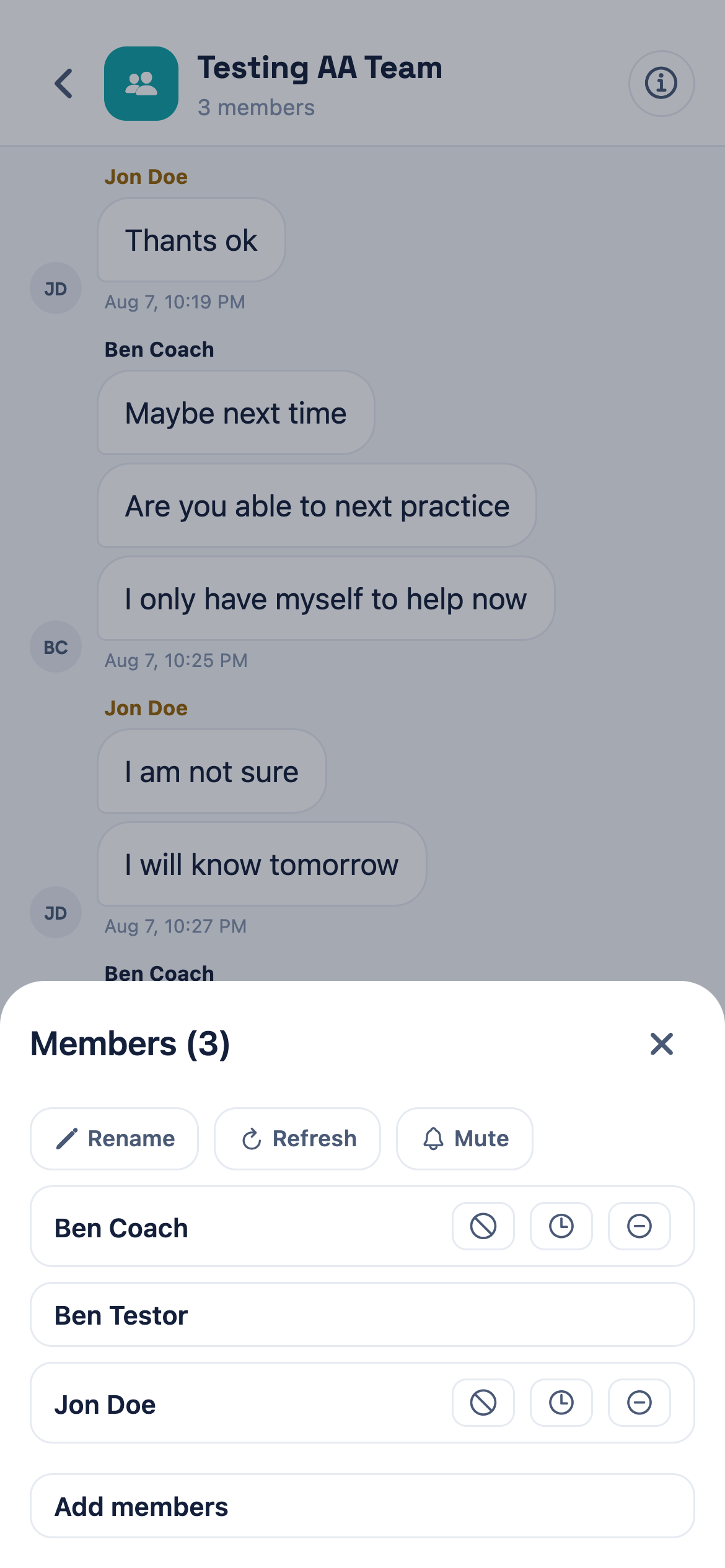
To mute, open the conversation, tap the i in the top right and tap Mute. The button reads Muted once it's on, and tapping it again turns notifications back on. Leaving and deleting start from the Messages list instead — swipe a conversation on your phone, or use the small icons on the row if you're on a computer.
Mute
Leave
Delete
What it does
Stops the notifications
Removes you from it
Removes it for everyone
Who can
Anyone
Members who didn't create it
Only the creator
Team and league channels
Yes
No
No
Mute sits here rather than on the message list, which is why it works the same on a phone and a computer. Rename and Add members only appear if you created the group.
Why a team or league channel can only be muted
This is the one that gets asked most, and the answer is that leaving wouldn't stick.
A channel's membership is generated from the roster. Leave your team's channel and the next time membership syncs — someone joins, someone's role changes — you'd be put straight back in, because you are still on the team. Rather than let you leave and quietly undo it, the app doesn't offer it.
Muting is the setting that survives, so it's the one to use. You stay in the channel, messages keep arriving, and your phone stays quiet. You can still open it whenever you want to catch up.
Nobody can delete a team or league channel either. It has no creator to delete it — the app made it.
Blocking and reporting
These do different jobs. Block is personal and immediate: hold one of their messages, tap Block, and you stop seeing anything from them while they lose the ability to start a direct chat with you. Nobody is told. Undo it under Blocked Users in Settings.
Report message sends it to be reviewed by someone else. You pick a reason — harassment or bullying, hate speech, sexual or explicit content, violence or threats, spam or scam, or something else — and the report goes to your league's admins. A message reported by three different people is hidden straight away while it waits to be looked at.
Reporting doesn't block the person, and blocking doesn't report them. If someone is both upsetting you and breaking the rules, do both.
Questions
Common questions
Why can't I leave my team's group chat?+−
If it's the team channel, leaving would be undone the next time the roster syncs, so the app offers Mute instead. If it's an ordinary group you can leave it — unless you're the person who created it, in which case delete it or hand it over.
How do I stop the notifications without leaving?+−
Open the conversation, tap the i in the top right and tap Mute. The conversation stays in your list and messages still arrive, but your phone won't buzz.
Someone is sending messages I don't want to see+−
Press and hold one of their messages and tap Block. Their messages disappear for you and they can't start a direct chat with you. They aren't told, and you can undo it under Blocked Users in Settings.
What happens after I report a message?+−
It goes to your league's admins to review. Once three different people report the same message it's hidden automatically while it waits. Reporting doesn't block the sender, so block them too if you'd rather not see them.
Can I see who reacted to a message?+−
Yes. Tap the emoji chip under the message and the Reactions sheet lists everyone by name, with a tab per emoji when there's more than one.
I deleted a conversation and someone else says it's gone too+−
That's how delete works — it removes the conversation for everyone in it, and only its creator can do it. Leaving is the one that affects only you.
Can I reply to one particular message?+−
Not at the moment. Messages don't thread, so replies go to the conversation in order. A reaction is the usual way to point at one message without adding another.
Still stuck?
Tell us what you were trying to do and where it went wrong, and we'll take a look.